Take a photo
Press the button once to take a photo.One press. One photo.
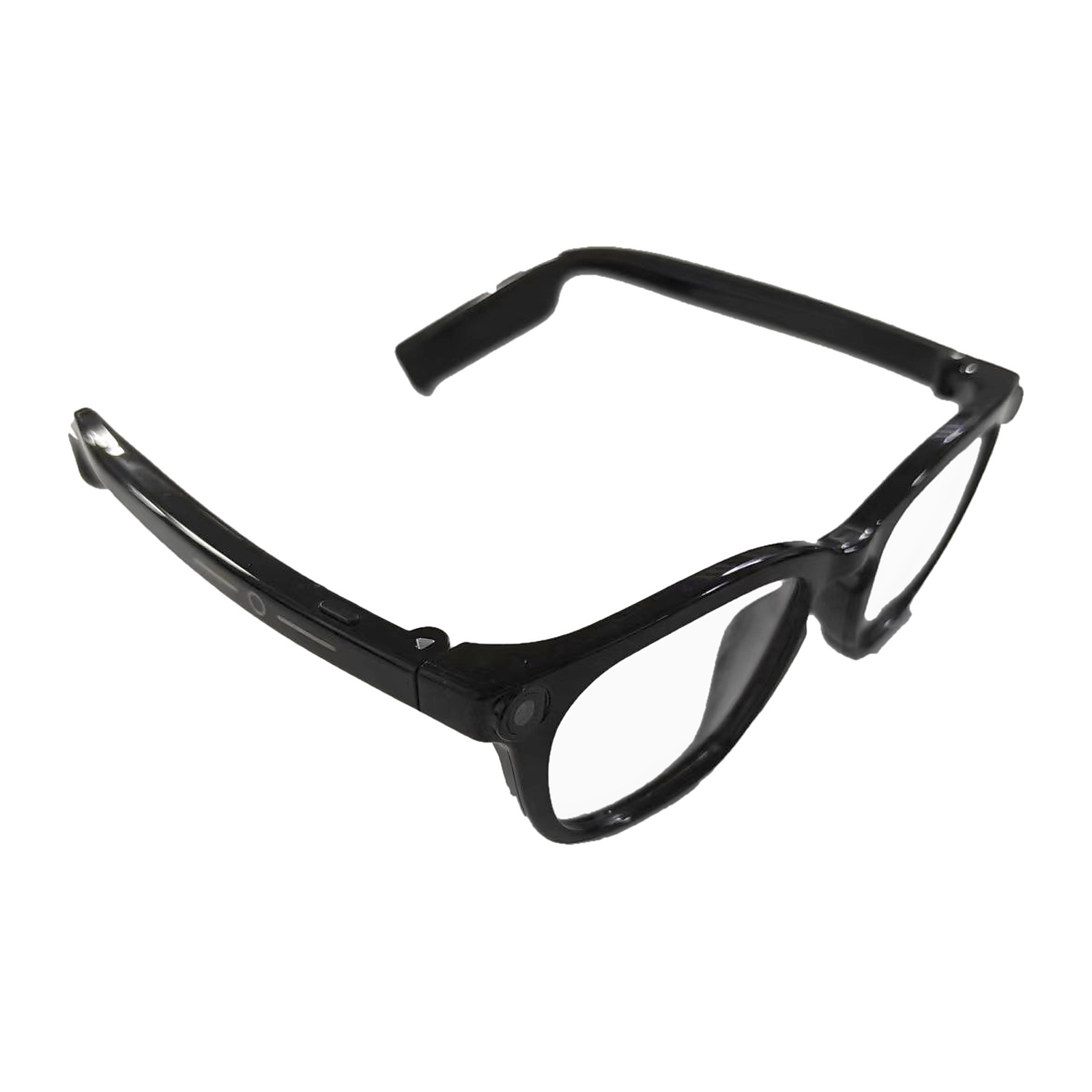

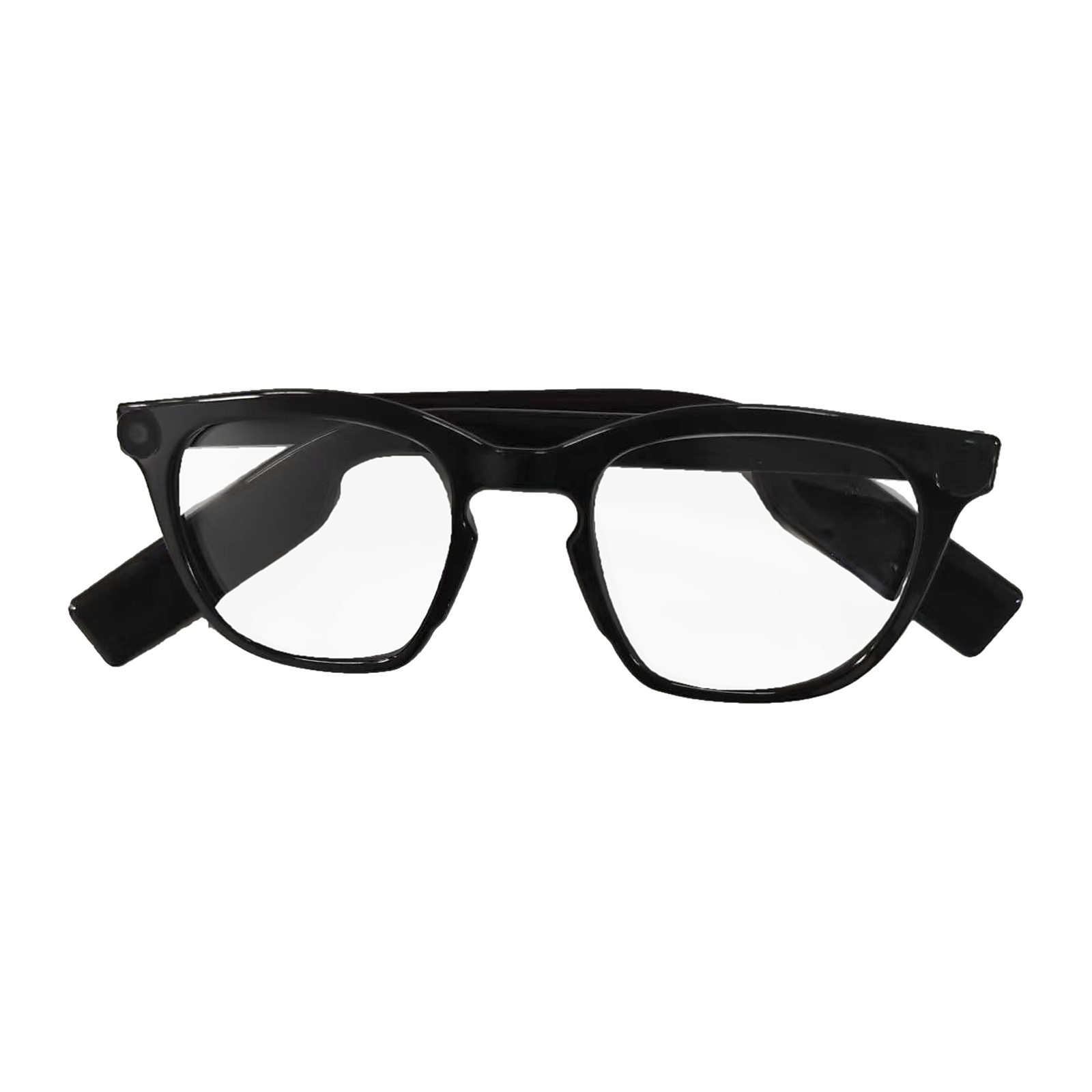
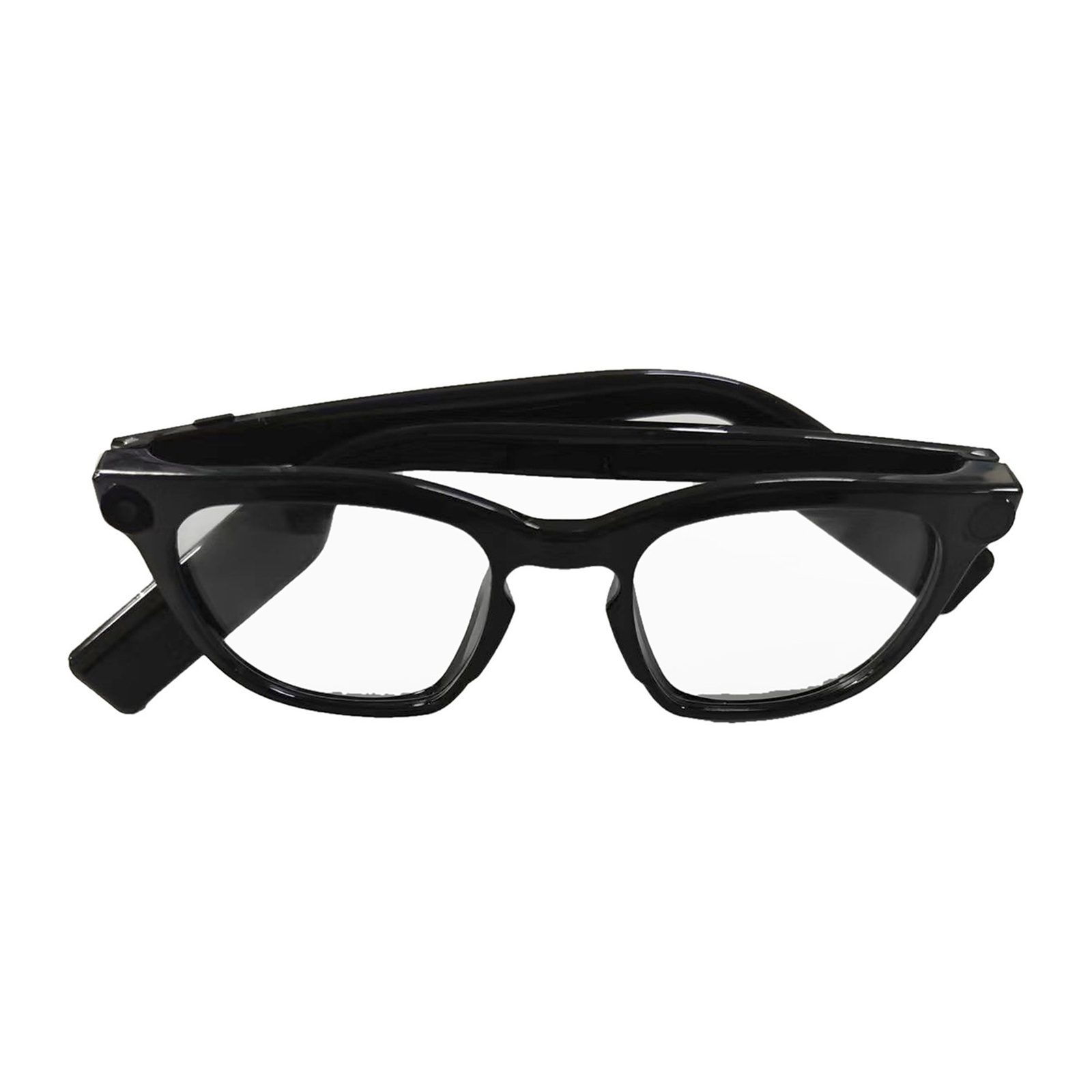
Features & quick start guide
Music, phone calls, photos, video and audio recording, with connected AI assistance. Discover what your smart glasses can do and learn the controls in a few simple steps.
Explore the controls
Press the power button on the glasses. Listen for the voice prompt.
Enable Bluetooth on your phone and connect the glasses. You can then play music from your phone through the glasses.
Enable Bluetooth tethering, also called Bluetooth internet sharing, on your phone to provide the glasses with internet access for AI mode.

Use the touch area for music playback and volume. Use the button to manage incoming calls and end a conversation.
A touch-area gesture and a button press are different controls. Button actions also depend on whether a call is incoming or active.
| Function | Control | How it works |
|---|---|---|
| Play / pause music | Double-tap the touch area | Double-tap to pause. Double-tap again to resume playback. |
| Adjust volume | Swipe the touch area | Swipe to increase or decrease the listening volume. |
| Answer a call | Press the button once | When an incoming call rings, press once to answer. |
| Reject a call | Press the button twice | When an incoming call rings, press twice to reject it. |
| End a call | Press the button once | During an active call, press once to hang up. |
Press the button once to take a photo.One press. One photo.
Press the button twice to start recording video.Press twice again to stop.
Press the button three times to start an audio recording.Press three times again to stop.
Video recording light: The front light turns on while video is recording and turns off when recording stops.

Two connections, two purposes: Bluetooth tethering shares your phone's internet connection with the glasses for AI. The glasses' Wi-Fi hotspot connects your phone to the glasses for file transfer.
Activate AI mode to ask questions and hear spoken responses through the glasses.
Online AI requires internet access through your paired phone.
Ask about the weather in a city and listen to a spoken summary of the conditions.
Request an itinerary with ideas for sightseeing, local food and places to visit.
Check battery status on your connected phone. Where supported, your phone's audio controls also provide a headphone audio-level readout.
